Until now, XtoSCORM was built around one person converting one file. September changes that. You can now invite your colleagues, share a single pool of credits across the whole team, and see exactly who is converting what.
Here is everything that shipped this month.
- Team management: invite your colleagues
- One shared pool of credits
- Analytics: see who is using what
- A redesigned dashboard for everyone
- Available on the new subscription plans
Team Management: Invite Your Colleagues
Training content is rarely made by one person. An instructional designer builds the course, a subject matter expert writes the quiz questions, and a manager needs to know it all got done. Until now, all of that ran through a single XtoSCORM login shared around the office.
You can now add team members to your organization, each with their own account. Everyone works in the same workspace, with their own login, and their activity is recorded against their own name rather than disappearing into a shared account.
For anyone who has ever tried to work out which colleague generated a particular SCORM package three months ago, this alone is worth the upgrade.
One Shared Pool of Credits
Team members draw from a single pool of credits that belongs to the organization, not to individuals.
That means no more topping up five separate accounts, no more one person running out mid-project while another has credits sitting unused, and one invoice instead of several. You buy credits once for the team, and anyone who needs them can use them.
Because every conversion is recorded against the member who ran it, you can still see exactly how the pool is being spent. Which brings us to the next feature.
Analytics: See Who Is Using What
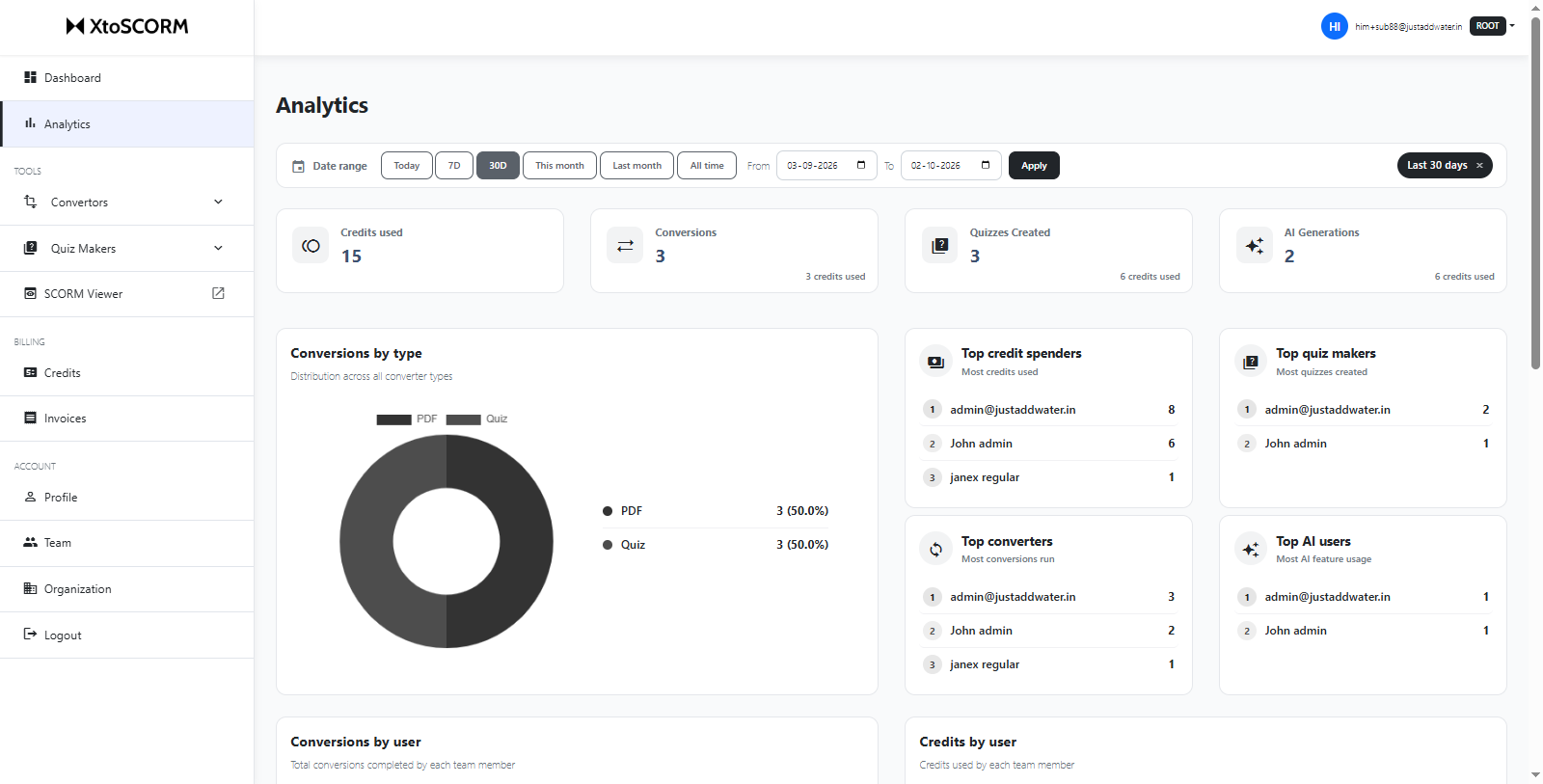
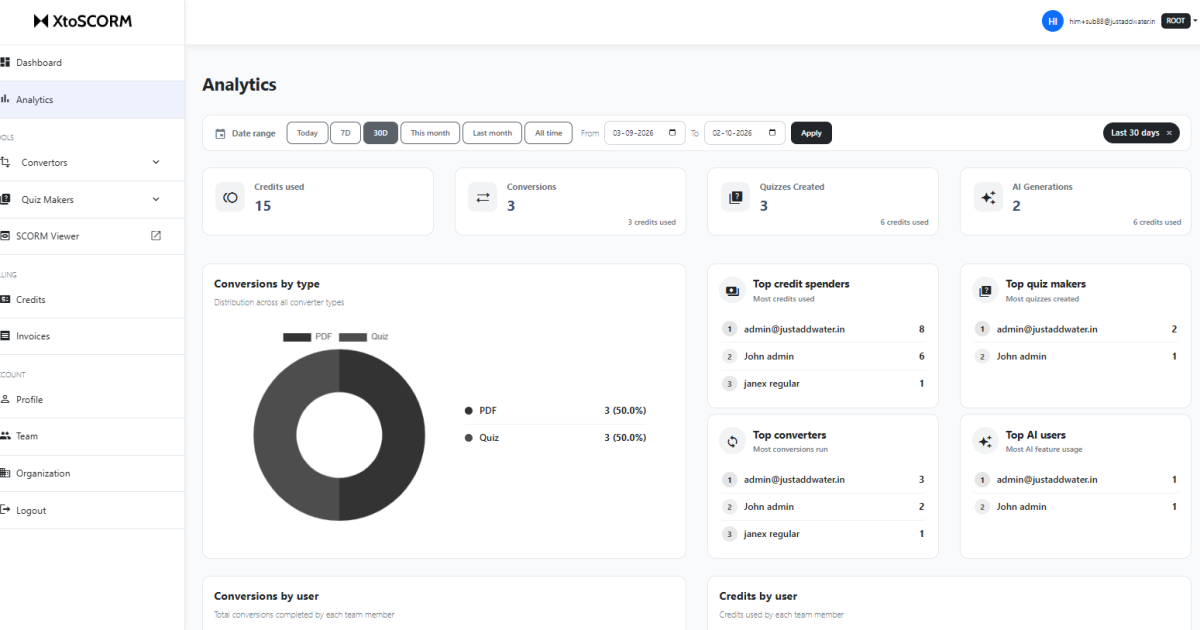
The new Analytics page gives admins a complete view of how their organization uses XtoSCORM. Pick a date range, from today, the last 7 or 30 days, this month, last month, all time, or a custom range, and everything updates.
At a glance
Four summary cards sit at the top: credits used, conversions run, quizzes created, and AI generations, each showing the credits that went with it. One look tells you whether this month’s spend went on file conversions or on AI-drafted quizzes.
Who is doing what
Below that, four leaderboards rank your team by top credit spenders, top converters, top quiz makers, and top AI users. Two bar charts break conversions and credit usage down member by member, and a donut chart shows the split across converter types, so you can see at a glance whether your team leans on PDF, PPT, video or quizzes.
The full audit trail
At the bottom is the usage history table: every single action with its date, the member who ran it, the file name, the action, the type, the status, and the credits it cost. You can filter by type and by status.
This is the part that matters when a finance team asks what the credits were spent on, or when you need to confirm a particular course was actually built and when.
A Redesigned Dashboard for Everyone
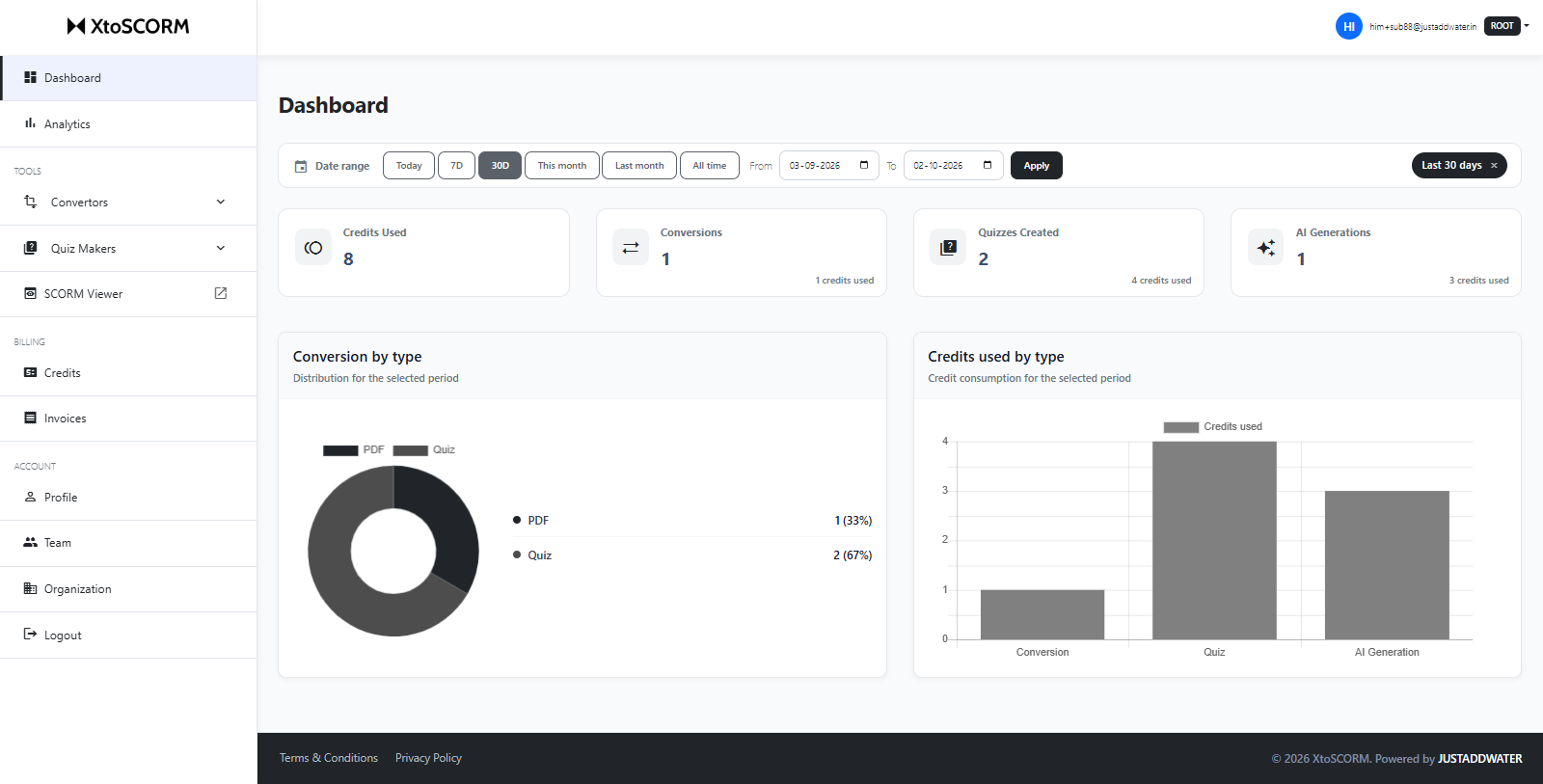
The dashboard has been rebuilt for every user, not just admins. Instead of a near-empty landing page, you now land on a clear view of your own activity.
It opens with the same date range filters as Analytics, so you can look at today, the last 7 or 30 days, this month, last month, all time, or any custom range. Four cards then show your credits used, conversions, quizzes created and AI generations for that period, each with the credits it consumed.
Below that are two charts. Conversion by type breaks your output down across PDF, PPT, video and quiz, so you can see what you actually spend your time making. Credits used by type splits your spend across conversions, quizzes and AI generations, which quickly shows whether AI drafting is where your credits are going.
Admins get the organization-wide picture on the Analytics page. Individual members get the same clarity about their own work on the dashboard.
Available on the New Subscription Plans
Team management, shared credits and analytics are part of the new subscription plans launching alongside this release. The single-user conversion tools work exactly as before, so nothing changes if you are using XtoSCORM on your own.
If you are running SCORM conversion across a training team, the pricing page has the details.
What Shipped in September
- 👥 Team management: add members to your organization, each with their own login.
- 🪙 Shared credit pool: one balance for the whole team, one invoice.
- 📊 Analytics page: date-filtered stats, per-member leaderboards and charts, plus a full usage history.
- 🧭 Redesigned dashboard: every user sees their own activity and spend at a glance.
All of it is live now. If something does not work the way you expect, or there is a report you need that we do not have yet, use the Report an Issue link in the footer. We read every submission.