We’ve shipped a lot of small improvements over the past few months. This one is different. XtoSCORM has always been a converter: you brought a file, we turned it into a SCORM package. As of August, it’s also a quiz builder, and AI can write the questions for you.
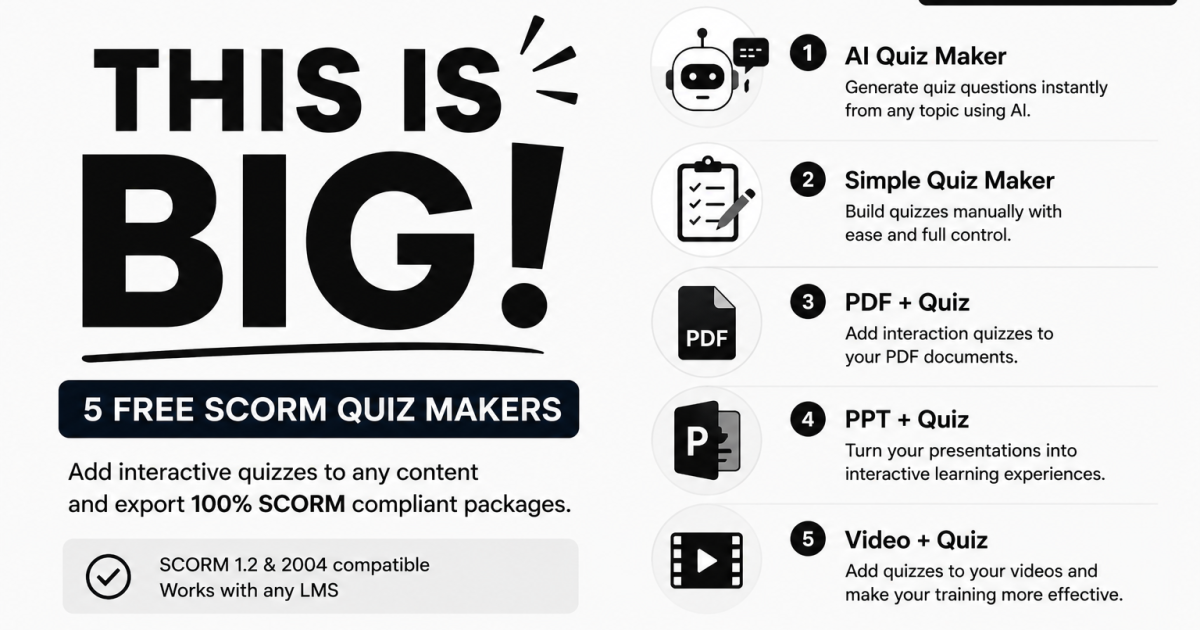
Five new tools went live this month. Here’s what each one does and when you’d reach for it.
- AI SCORM Quiz Maker: describe a quiz, get a quiz
- SCORM Quiz Maker: build it yourself, step by step
- PDF, PPT & Video + Quiz: add assessments to content you already have
- What’s inside every quiz
- Which tool should you use?
AI SCORM Quiz Maker: Describe a Quiz, Get a Quiz
The AI SCORM Quiz Maker is the fastest way to get from an idea to a downloadable SCORM package. You type what you want in plain language, and AI drafts the whole quiz from scratch. No source file needed at any point.
A prompt like “10 medium-difficulty questions on workplace fire safety” is enough to get a full draft back, complete with a suggested title. From there you review, edit, reorder, or delete anything before generating the package.
Two steps, start to finish
- Add Quiz. Write your prompt, let AI draft the questions, then adjust settings: passing score, question shuffling, questions per page, and custom pass/fail messages.
- Preview & Download. Take the quiz yourself in a live browser preview, check the answer key, then generate your SCORM 1.2 or SCORM 2004 ZIP.
Being specific in the prompt gets better results. Mention the topic, how many questions you want, and the difficulty level. You can also request a language other than English.
SCORM Quiz Maker: Build It Yourself, Step by Step
If you already know exactly what your questions should be, the SCORM Quiz Maker gives you a clean three-step builder without leading with AI. Configure, add questions, preview and download.
AI is still available here, it just sits behind a button rather than being the starting point. You’ll find “Generate Quiz with AI” on both Step 1 and in the Step 2 side panel, so you can draft manually, generate with AI, or mix the two in the same quiz.
This is also the tool to use when you’re writing questions that need precise wording, like compliance language or regulatory terminology, where an AI draft would need heavy editing anyway.
PDF, PPT & Video + Quiz: Add Assessments to Content You Already Have
The three file-based tools solve a different problem. You already have the training material, a policy PDF, an onboarding deck, a recorded session, and you need to prove learners actually understood it, not just opened it.
What makes these different from the standalone builders: AI reads your uploaded file and drafts questions from its actual content. Upload a 40-page compliance manual, ask for 8 questions on the sections that matter, and the questions come back grounded in what’s in the document.
PDF + Quiz
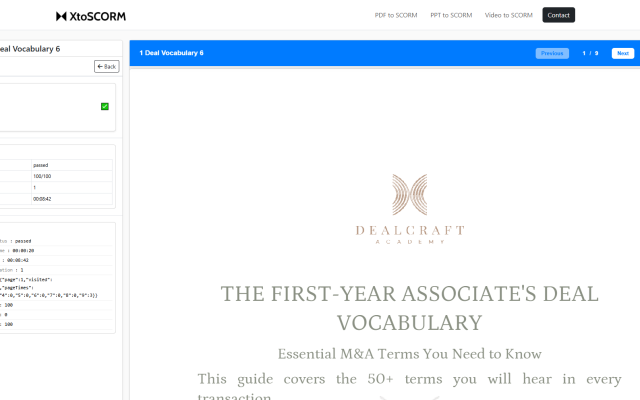
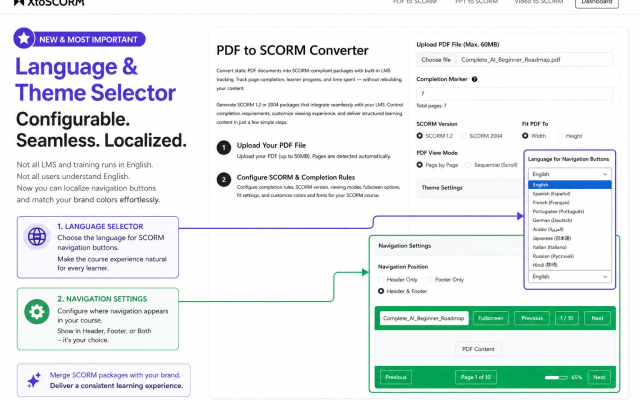
PDF + Quiz pairs a page-viewing requirement with a graded quiz. You set a completion marker (how many pages a learner must view), and the quiz confirms comprehension on top of that. It carries the full Theme and Navigation settings from the standard PDF converter: background and foreground colors, font family, navigation position, and 11 interface languages.
PPT + Quiz
PPT + Quiz works the same way with slides instead of pages, and accepts more than just PowerPoint. PPT, PPTX, Apple Keynote (.key), and OpenDocument Presentation (.odp) all work. Completion is tied to slides viewed, plus the quiz result.
Video + Quiz
Video + Quiz is the most configurable of the three. Alongside the quiz you get:
- Watch-percentage completion so learners can’t skip to the end. Setting this between 70 and 90% is a reasonable balance.
- Classic or Modern player themes, with a drag-slider comparison so you can see both before choosing.
- Individually toggleable player controls: turn off seek to prevent scrubbing past content, or disable whichever controls don’t suit your course.
- Image or text watermarking with adjustable opacity, size, and five position options including Center.
What’s Inside Every Quiz
All five tools share the same quiz engine, so anything you learn in one carries over to the others.
- Question types: single-select (one correct answer) and multi-select (one or more).
- Unlimited questions, with drag-and-drop reordering.
- Custom passing score, with 70% a sensible default for most training.
- Question shuffling to randomize order per learner and reduce answer sharing.
- Show correct answers, optionally revealed after the learner finishes.
- Questions per page, so you can present one at a time or in batches.
- Quiz result reporting: either mark the attempt as completed, or report a full passed/failed result back to the LMS.
- Custom pass and fail messages to tell learners what to do next.
- Live preview where you can take the quiz yourself and verify the answer key before generating anything.
- Quiz History, which saves your quizzes so you can reuse questions in future projects. This one needs a free account.
- SCORM 1.2 and SCORM 2004 export, compatible with Moodle, Blackboard, Canvas, TalentLMS, Docebo, Cornerstone, Absorb, LearnUpon, and other SCORM-compliant platforms.
One important note on grading
Quiz grading happens in the learner’s browser. That makes these tools excellent for knowledge checks and learning reinforcement, but they aren’t tamper-proof. For high-stakes certification or proctored exams, use your LMS’s built-in quiz engine instead. We’d rather say this clearly than have you find out later.
Which Tool Should You Use?
A quick way to decide:
- You have no source file and want it fast: AI SCORM Quiz Maker
- You have no source file and want full manual control: SCORM Quiz Maker
- You have a document to assess: PDF + Quiz
- You have slides to assess: PPT + Quiz
- You have a video to assess: Video + Quiz
Everything New in August
- ✨ AI SCORM Quiz Maker: generate a full quiz from a plain-language prompt, no file required.
- 📝 SCORM Quiz Maker: three-step manual builder with AI available on demand.
- 📄 PDF + Quiz: page-tracked SCORM courses with questions drafted from your PDF.
- 📊 PPT + Quiz: slide-tracked courses from PPT, PPTX, Keynote, or ODP files.
- 🎥 Video + Quiz: watch-percentage completion, player themes, control toggles, and watermarking.
All five are live now. If something doesn’t work the way you expect, or there’s a question type you need that we don’t support yet, use the Report an Issue link in the footer. We read every submission.