May has been a busy month at XtoSCORM. We shipped three new features that directly address the most common pain points we hear from eLearning creators, LMS administrators, and instructional designers: testing SCORM packages without a full LMS, protecting video content with branding, and giving learners a distraction-free fullscreen experience. Here’s everything that’s new.
- Free SCORM Viewer — test packages instantly in your browser
- Video Watermarking — brand your Video to SCORM output
- Fullscreen Button Control — show or hide the fullscreen toggle
Free SCORM Viewer: Test Your SCORM Packages Instantly, No LMS Required
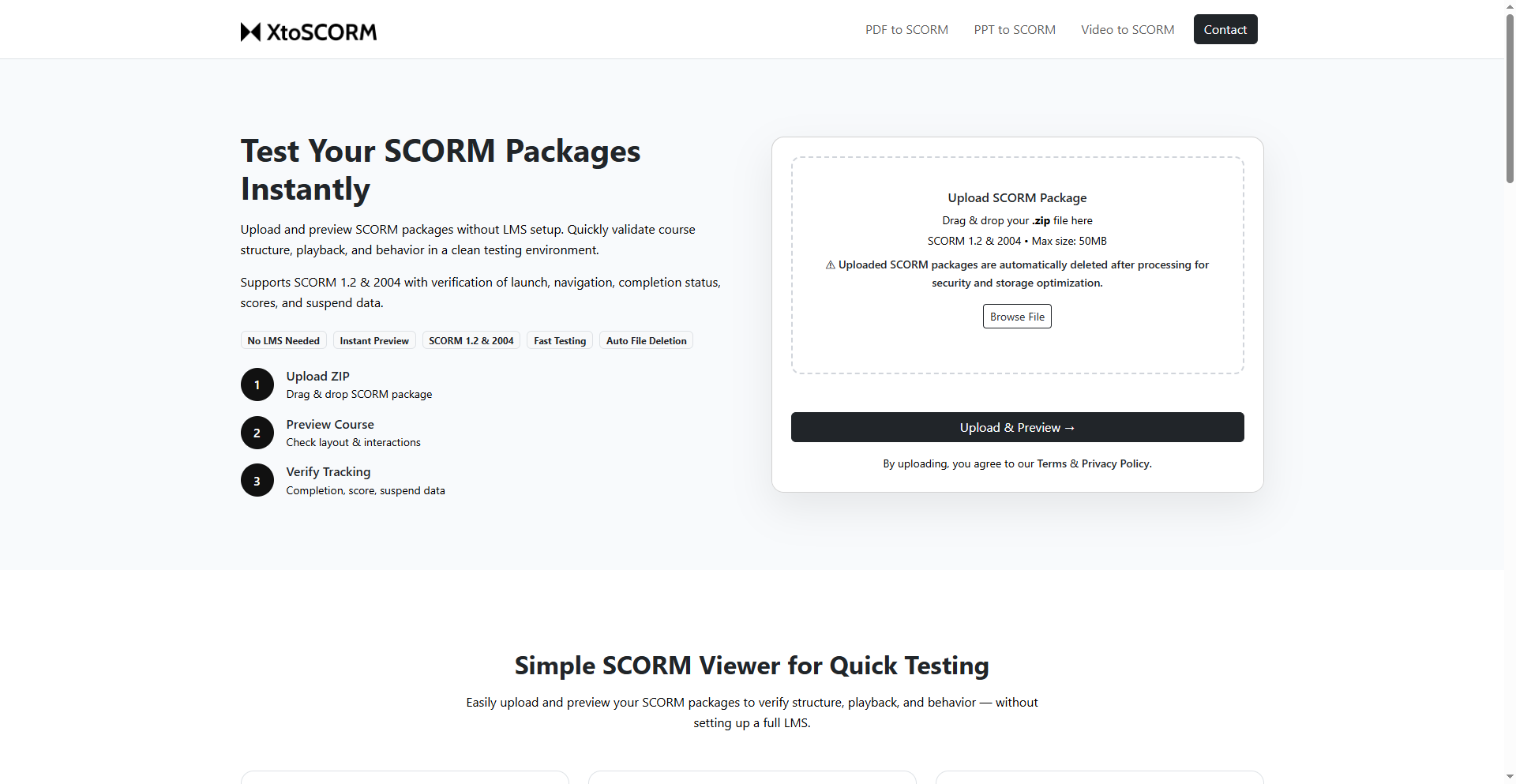
Setting up a test environment on Moodle or TalentLMS just to preview a SCORM package is slow, frustrating, and completely unnecessary. Our new free SCORM Viewer lets you upload any SCORM ZIP file and preview it directly in your browser — no LMS installation, no account, no configuration.
What the SCORM Viewer checks
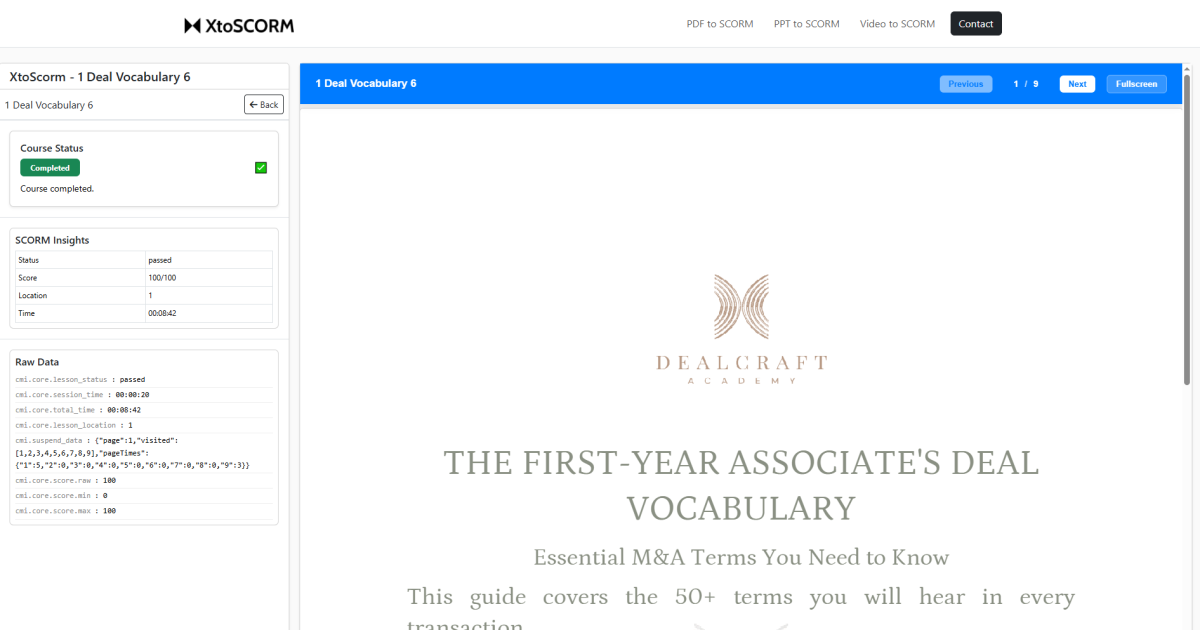
This isn’t just a simple file player. The viewer validates your package end-to-end so you can catch issues before learners ever see them:
- Manifest file validation — confirms your
imsmanifest.xmlis present and correctly structured, which is the first thing any LMS checks on import. - Course launch — verifies your entry point loads without errors in a controlled environment.
- Navigation flow — tests that buttons, menus, and course progression work as expected.
- SCORM API communication — ensures your course connects to the SCORM API and exchanges data correctly.
- Completion status — validates that your course sets
cmi.completion_statusorcmi.core.lesson_statusbased on learner progress. - Score tracking — checks that scores are calculated and sent to the SCORM system correctly.
- Suspend data handling — verifies that learner progress is saved and restored between sessions.
- Error detection — surfaces missing files, broken links, or runtime errors before they reach production.
Who should use it
If you build SCORM content in Articulate Storyline, Adobe Captivate, iSpring, or generate packages using XtoSCORM’s PDF, PPT, or Video converters, the SCORM Viewer is the fastest way to verify your output before uploading to your LMS. It supports both SCORM 1.2 and SCORM 2004, accepts ZIP files up to 50MB, and automatically deletes uploaded packages after processing for security.
Video Watermarking in the Video to SCORM Converter
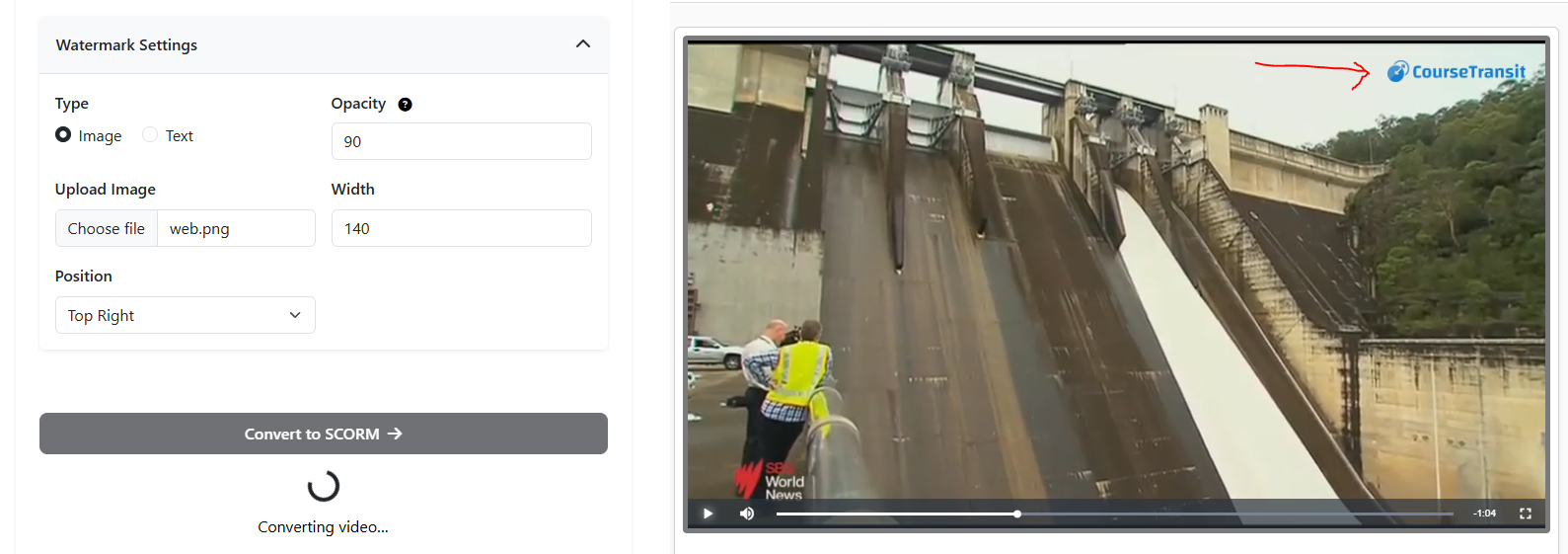
Our Video to SCORM Converter now supports watermarking. You can embed a custom image or text watermark directly into the video player output of your SCORM package — giving you control over branding and content protection without any video editing software.
Watermark options
- Type — choose between an Image watermark (upload your logo or graphic) or a Text watermark (enter any string, such as your company name or a confidentiality notice).
- Opacity — set transparency from 0 to 100 so the watermark is visible without obscuring your content. Most use cases work well between 30–50.
- Position — place the watermark at Top Right, Top Left, Bottom Right, Bottom Left, or Centre to match your brand guidelines.
Why this matters for LMS content
When you distribute video-based SCORM courses through an LMS, learners can often download or screen-record the content. A persistent watermark — especially one that identifies the learner’s organisation or carries a copyright notice — acts as both a deterrent and a traceability tool. This is particularly useful for compliance training, paid courses, and any content shared across multiple client organisations.
Try the Video to SCORM Converter →
Fullscreen Button Control Across All Converters
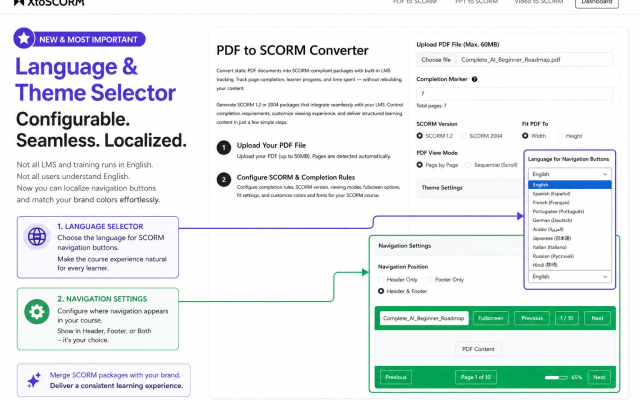
All three converters — PDF to SCORM, PPT to SCORM, and Video to SCORM — now include a Fullscreen Button option. A simple Yes/No toggle controls whether the fullscreen button appears in the SCORM player delivered to learners.
When to show it
For self-paced e-learning where learners control their own environment, showing the fullscreen button gives them a better, more immersive experience — especially for video content or dense PDF documents that benefit from a larger viewing area.
When to hide it
Many LMS platforms embed SCORM content inside iframes with their own chrome — navigation bars, progress indicators, sidebar menus. In these layouts, a fullscreen button that takes the content out of the LMS frame can break tracking, disrupt navigation, or simply look out of place. Hiding the button keeps the learner inside the expected LMS environment and prevents any SCORM API communication from being interrupted.
This is a small setting with a meaningful impact on the professionalism of your delivered courses. It takes one click to configure and zero effort to maintain.
All Three Features, Available Now
Here’s a quick summary of what shipped this month:
- 🔍 Free SCORM Viewer — upload and validate any SCORM 1.2 or 2004 package in your browser, no LMS needed.
- 🎬 Video Watermarking — embed image or text watermarks with custom opacity and position in Video to SCORM output.
- ⛶ Fullscreen Button Toggle — show or hide the fullscreen control across all PDF, PPT, and Video converters.
All features are live and free to use. If you have a feature request or found a bug, use the Report an Issue link in the footer — we read every submission.